Transport List
Transport Management
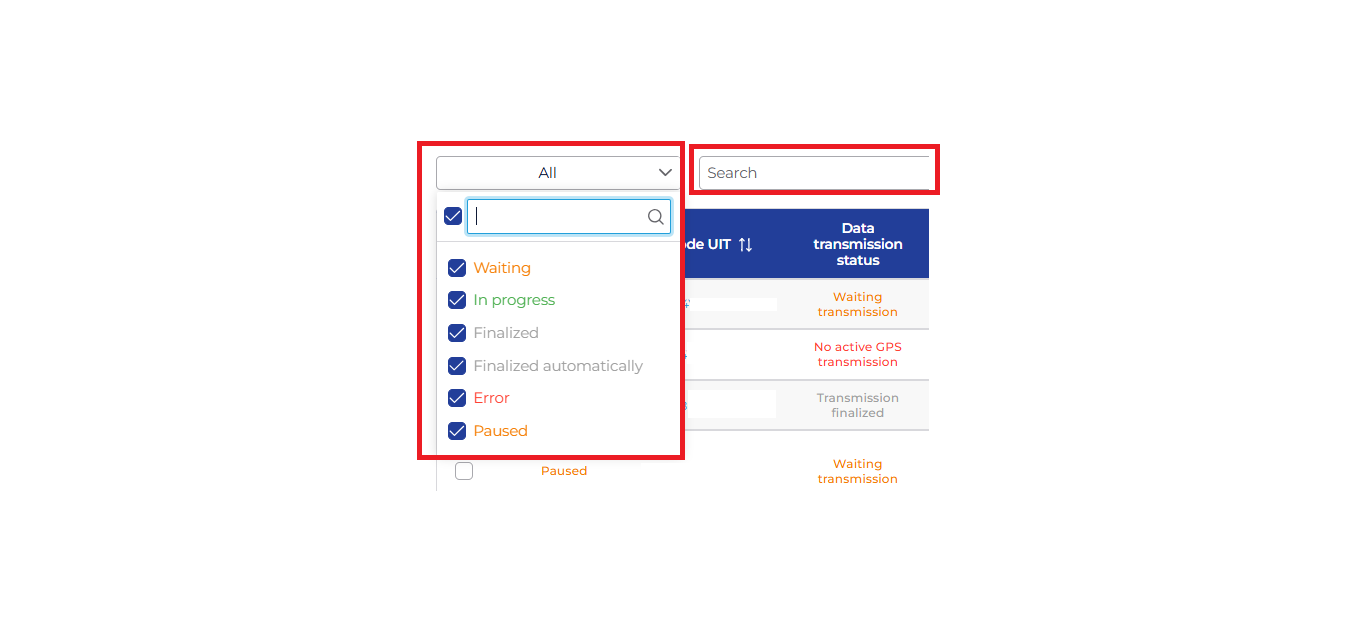
At the top of the list, there is a quicksearch menu where you can search by the fields you want to display (e.g., UIT code, license plate number, etc).
On the left side, from the drop-down list, you can filter transports based on their status.
The table contains the following columns:
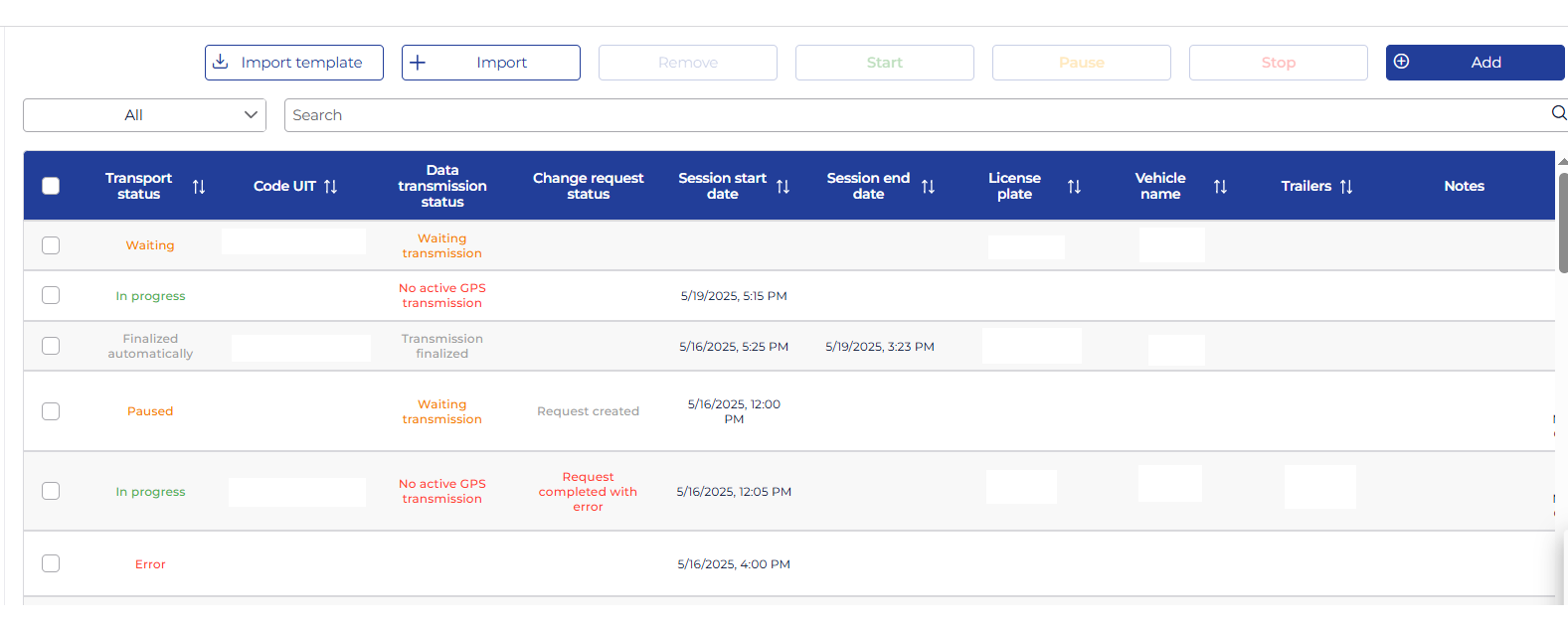
- Transport Status: Status of the transport.
- Code UIT: UIT code generated by ANAF for each transport.
- Data Transmission Status: shows the status of data transmission to ANAF for each transport.
- Change Request Status: shows the status of the request to change transport data (vehicle or trailer license plate number) sent to ANAF. This status is provided by ANAF.
- Session Start Date: date and time when GPS data transmission to the ANAF platform started.
- Session End Date: date and time when GPS data transmission to the ANAF platform ended.
- License Plate: license plate number of the vehicle used to send location data to ANAF.
- Vehicle Name: name of the vehicle used to send location data to ANAF.
- Trailers: license plate numbers of trailers associated with the transports.
- Notes
- Start Location: departure location of the transport as declared in the ANAF platform.
- End Location: arrival location of the transport as declared in the ANAF platform.
- UIT Validity Start Date: start date of the UIT code validity. This date is generated by the ANAF platform.
- UIT Validity End Date: end date of the UIT code validity. This date is generated by the ANAF platform.
- Last Sync Date: date when the last data synchronization with the ANAF platform was performed.
The transport list can be sorted by the following columns: Transport Status, Code UIT, Session Start Date, Session End Date, License Plate, Vehicle Name, Trailers, UIT Validity Start Date, UIT Validity End Date, Last Sync Date.
To edit a transport, click on the UIT code in the list.
Those added automatically from synchronization with the ANAF platform cannot be edited. To make changes to them, you must log in to the ANAF platform. After saving the changes in the ANAF platform, they will also be visible in the TrackGPS platform.
To add a transport manually, click the Add button in the upper right corner.
Except for transports with the status In progress, all transports in the list can be deleted. Select the desired transports by checking the checkboxes and click the Delete button in the menu at the top of the page.
You can check who performed the deletion by accessing the Administration menu, Activity History.