Add Transport
Manual Transport Addition
To add a new transport, from the management page click the Add button.
Besides the transports that appear automatically in the e-Transport menu list through authorization with the ANAF platform, you can also manually add a transport.
Click Add, and a window will open where the following fields are required:
license plate number, VAT number (automatically filled if authorized with ANAF), Code UIT, UIT validity start date,
UIT validity end date.
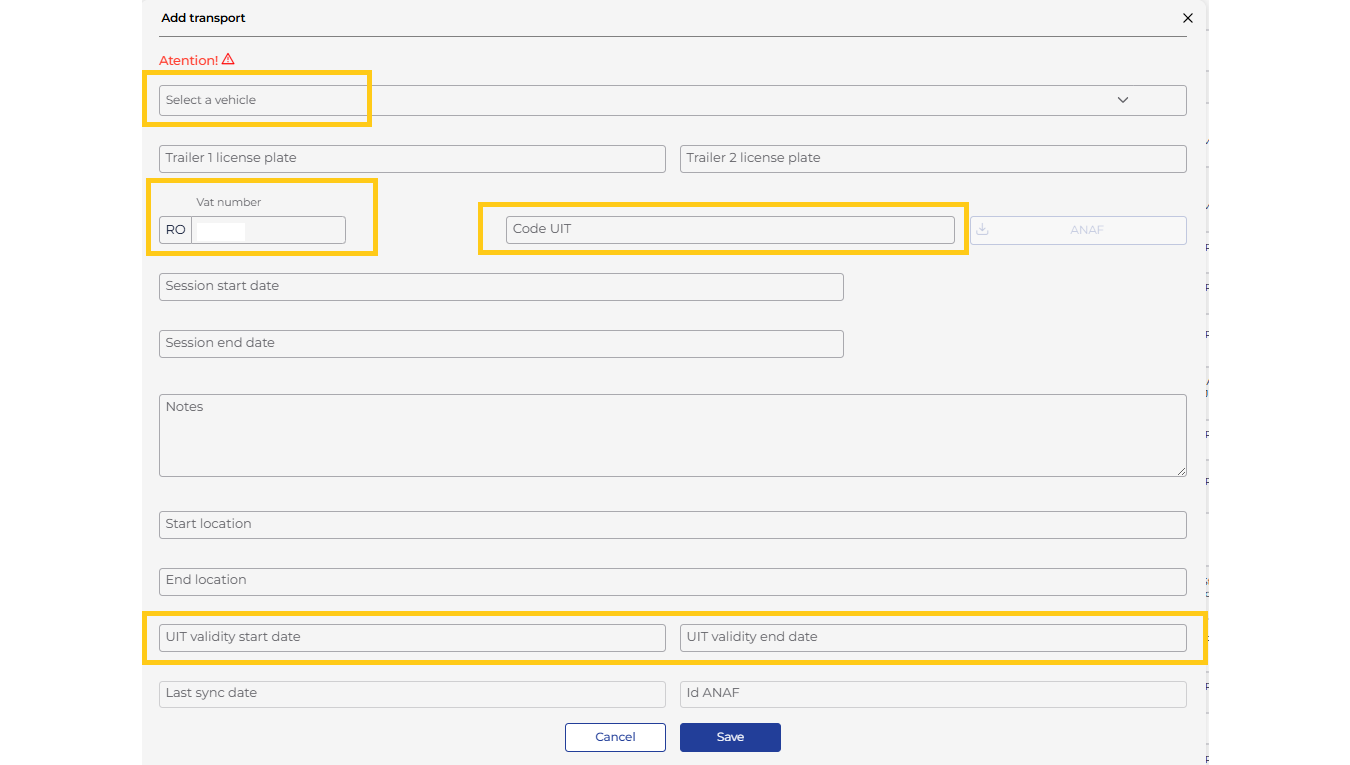
If you have the UIT code and authorization with the ANAF platform has been completed, clicking the ANAF download button will automatically fill in the fields by querying the authority’s platform.
After filling in the fields, click Save and the transport will be saved. Transports will be ordered by session start date.
Another option to add transports is by importing a file. You need to download the import template, fill in the columns with the same information, and then save it.
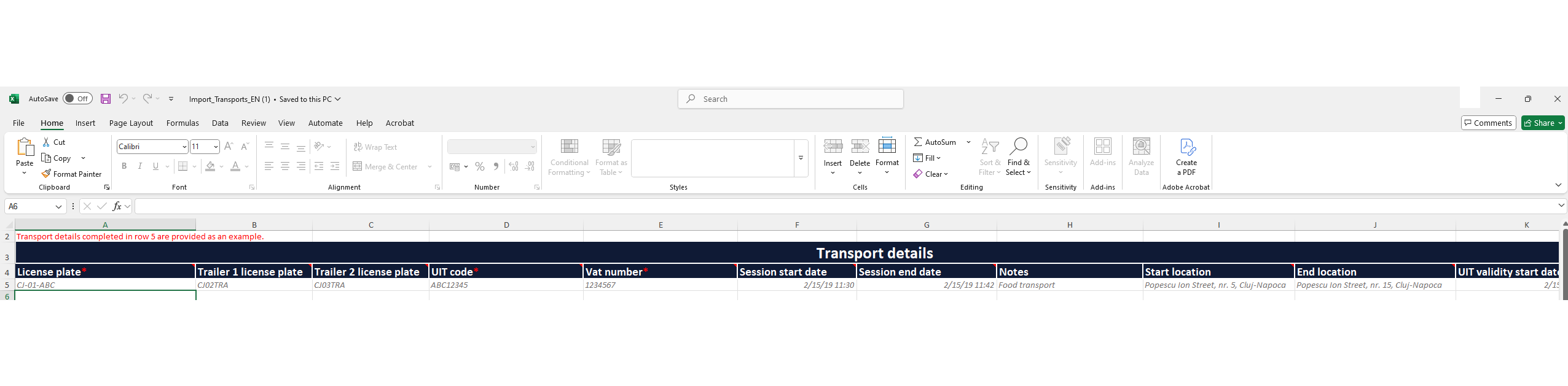
Afterwards, click “Import”, select the previously saved file, and a window with the Import Result will appear where you can check if the processing was successful.