DKV
Integrating DKV Data into the TrackGPS Application
This document outlines the steps necessary to integrate DKV data into the TrackGPS application. Please follow the instructions carefully to ensure a smooth integration.
1. Creating a DKV Platform User
- Go to the DKV signup page.
- Fill out the form with the following information:
- Email address
- Last name
- First name
- Password
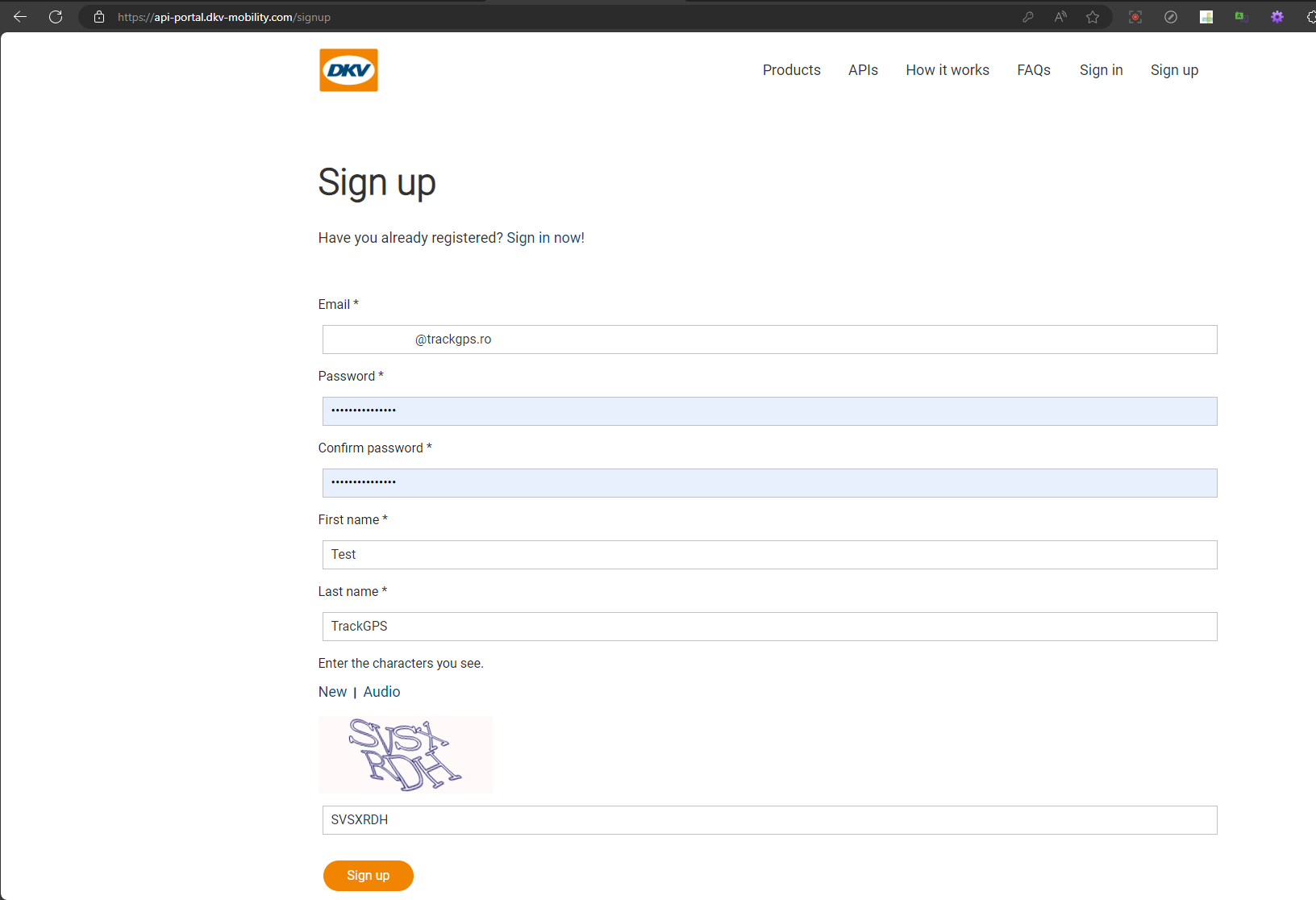
- After creating the user, you will receive an account activation email. Follow the steps in the email to activate your account.
2. Subscribing to the Enterprise API
- After activating your account, log in to the DKV portal.
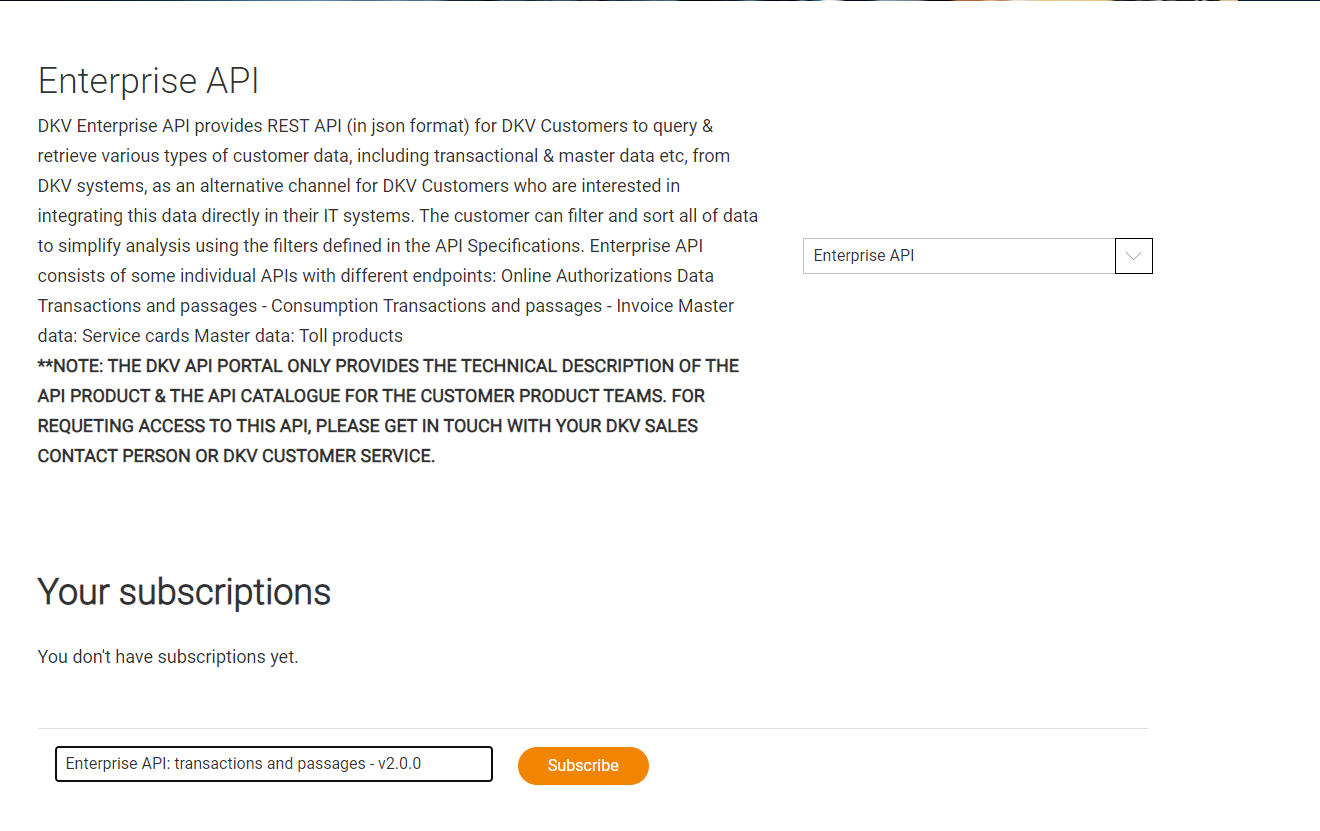
- Navigate to the Products page -> Enterprise API.
- In the Your subscriptions section, add a subscription request for the Enterprise API: transactions and passages - v2.0.0 product.
- Click the Subscribe button.
- After subscribing, the portal will redirect you to the Profile page.
3. Obtaining Access Data
- Contact the DKV sales team to request access to your data. Specify the email address used during the user creation process.
- Following your request, you should receive the following information:
- Client id
- Client secret
- Customer id
- Subscription Key
4. Configuration in the TrackGPS Application
-
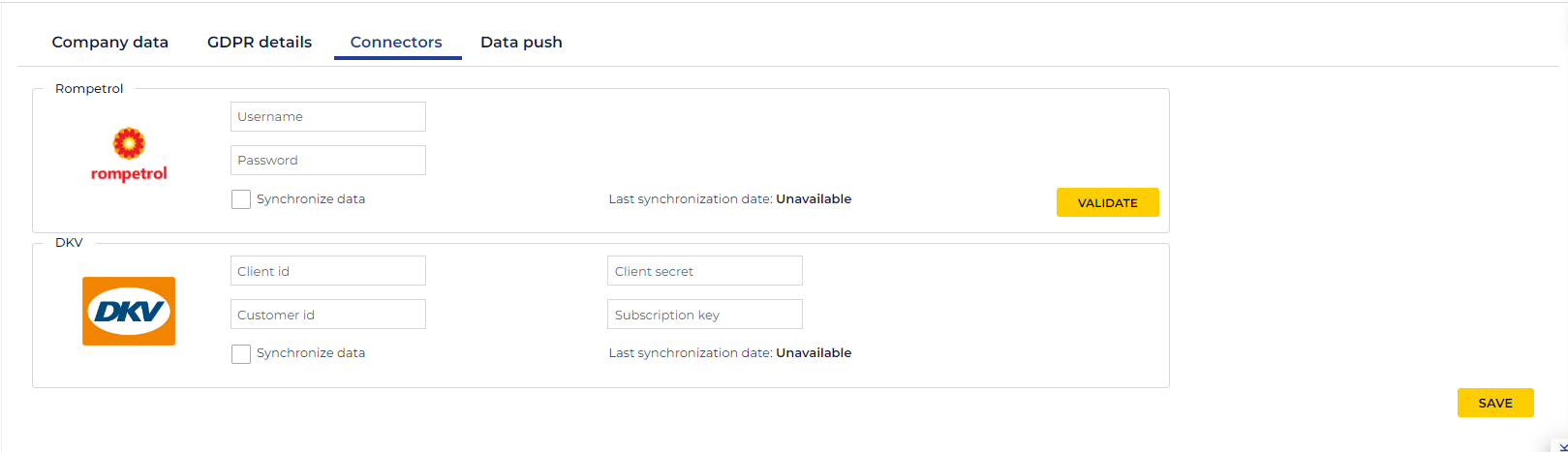
Add the obtained information in the Company Settings -> Connectors -> DKV section of the TrackGPS application.
-
Check “Synchronize data”.
-
Save
Info
If you wish to stop automatic data synchronization, uncheck the “Synchronize data” option and save.