Start/Stop/Pause Transport
Executing a Transport
Once all transports have been saved in the e-Transport module, you need to monitor their execution.
Data transmission must not be stopped later than the UIT code validity expiration date. If you forget to stop the session by pressing the Stop button, this will be done automatically by the TrackGPS platform when the UIT code validity expires, and the status will change to “Automatically finalized”.
Starting a Transport Session
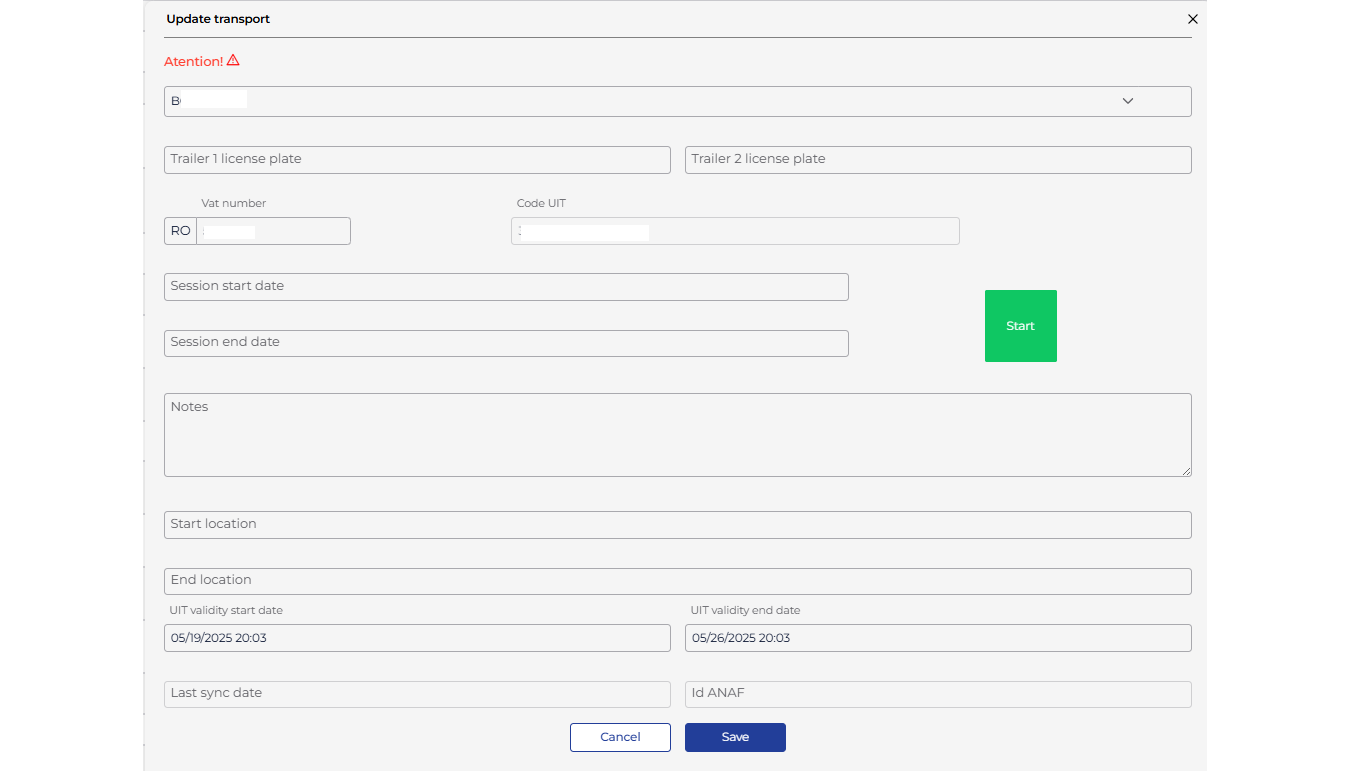
Select the desired transport by clicking on the UIT code and start the session by clicking the Start button. This step should be performed before the vehicle is leaving the starting location. Data transmission will begin immediately.
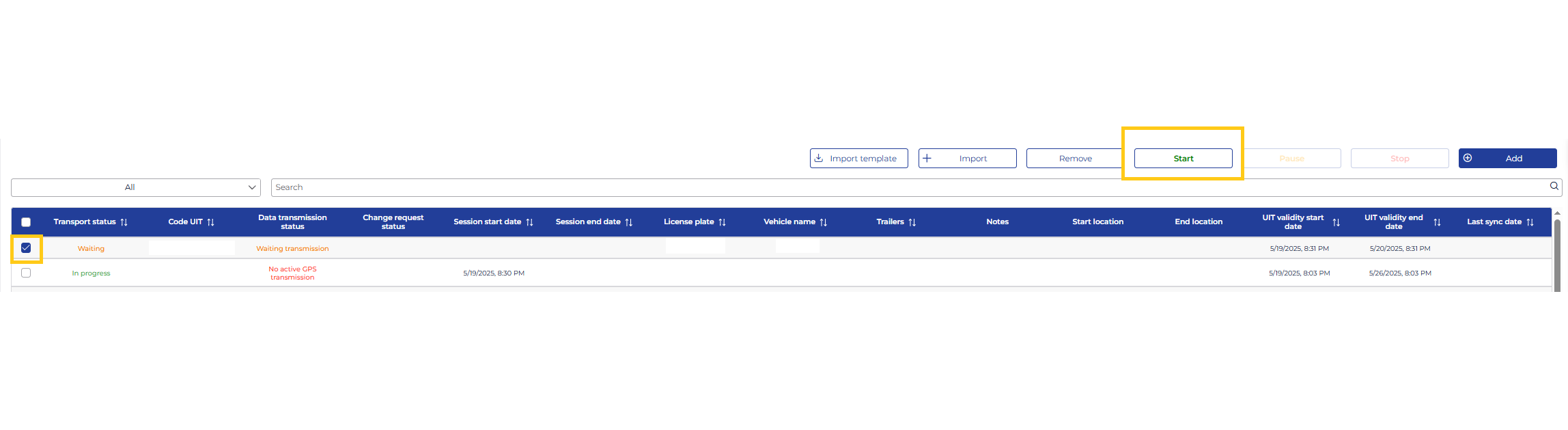
If you want to start multiple transports, you can select them by checking the checkboxes on their left and pressing the Start button from the top menu.
Pausing a Transport Session
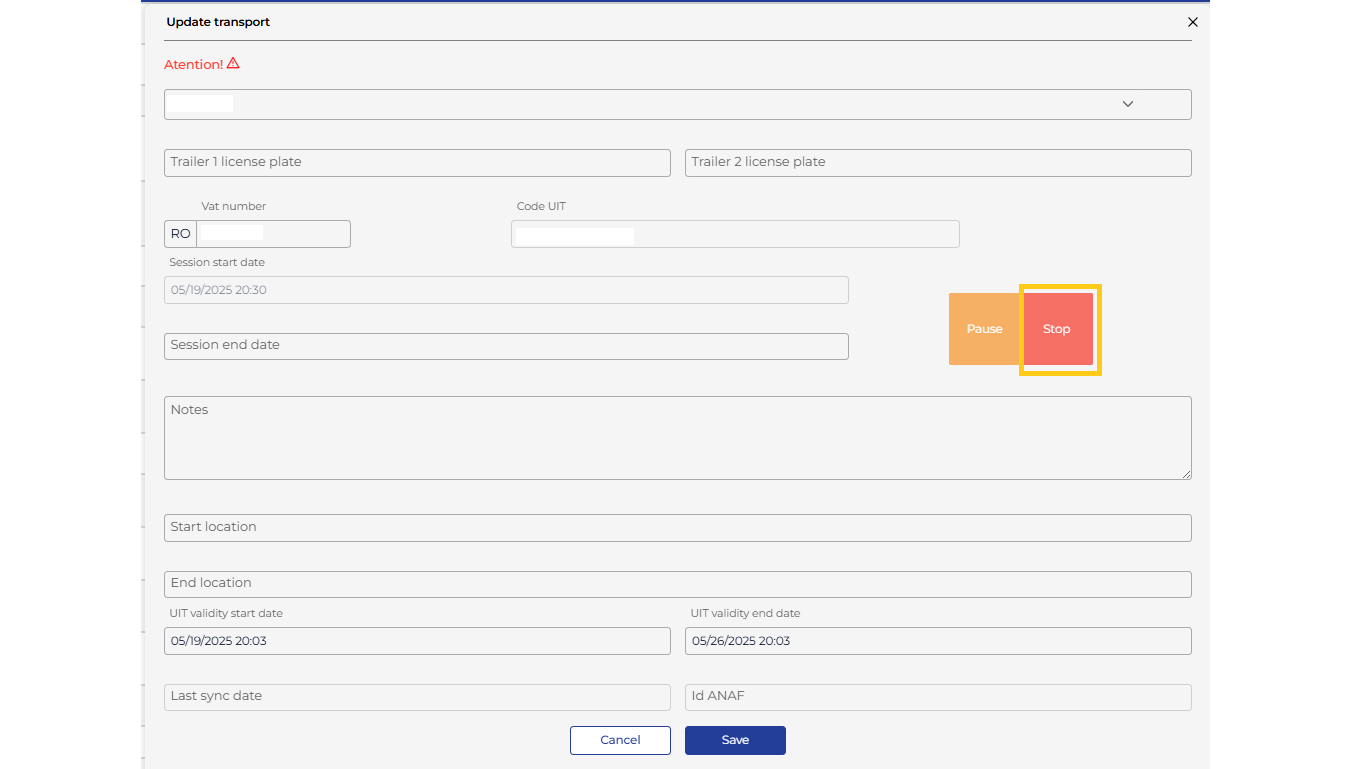
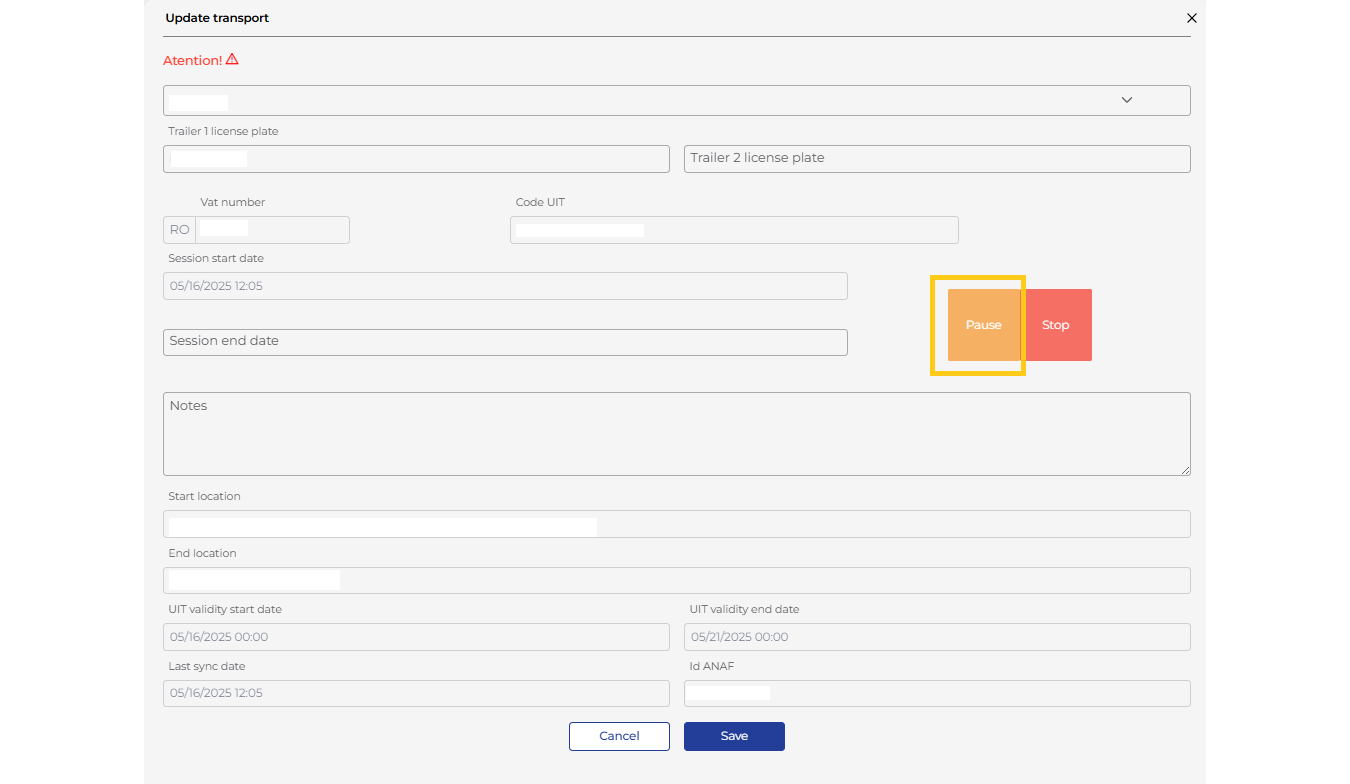
Select the desired transport by clicking on the UIT code and pause the session by clicking the Pause button. At that moment, the transport status will change to “Paused”.
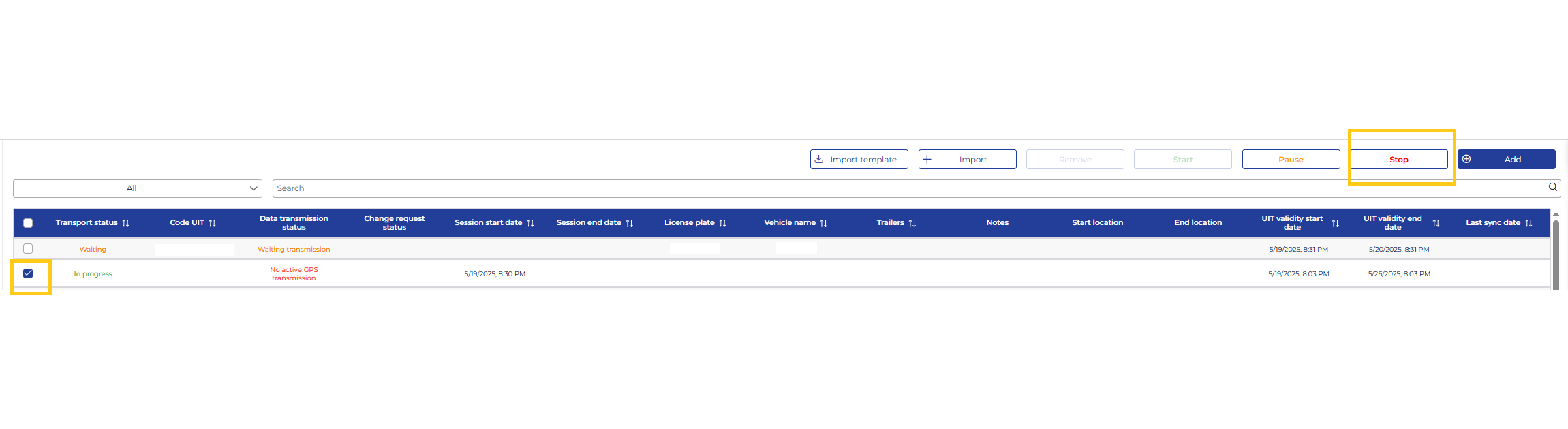
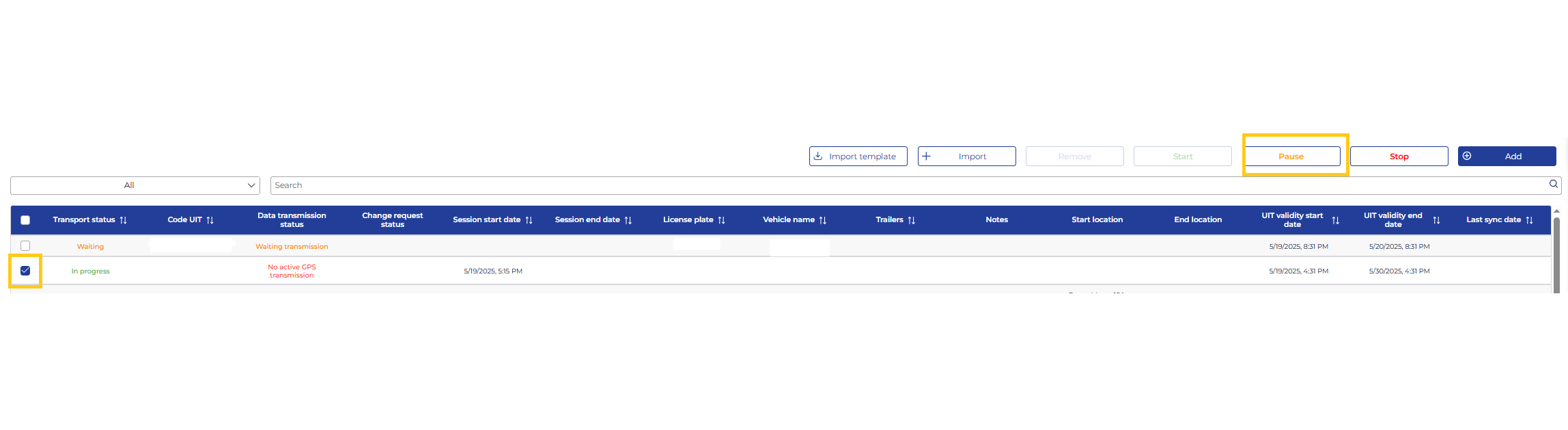
If you want to pause multiple transports, you can select them by checking the checkboxes on their left and pressing the Pause button from the top menu.
Stopping a Transport Session
Similarly, to stop a transport, click the Stop button. At that moment, the transport status will change to “Finalized”.