Subsections of Transport Management
Transport List
Transport Management
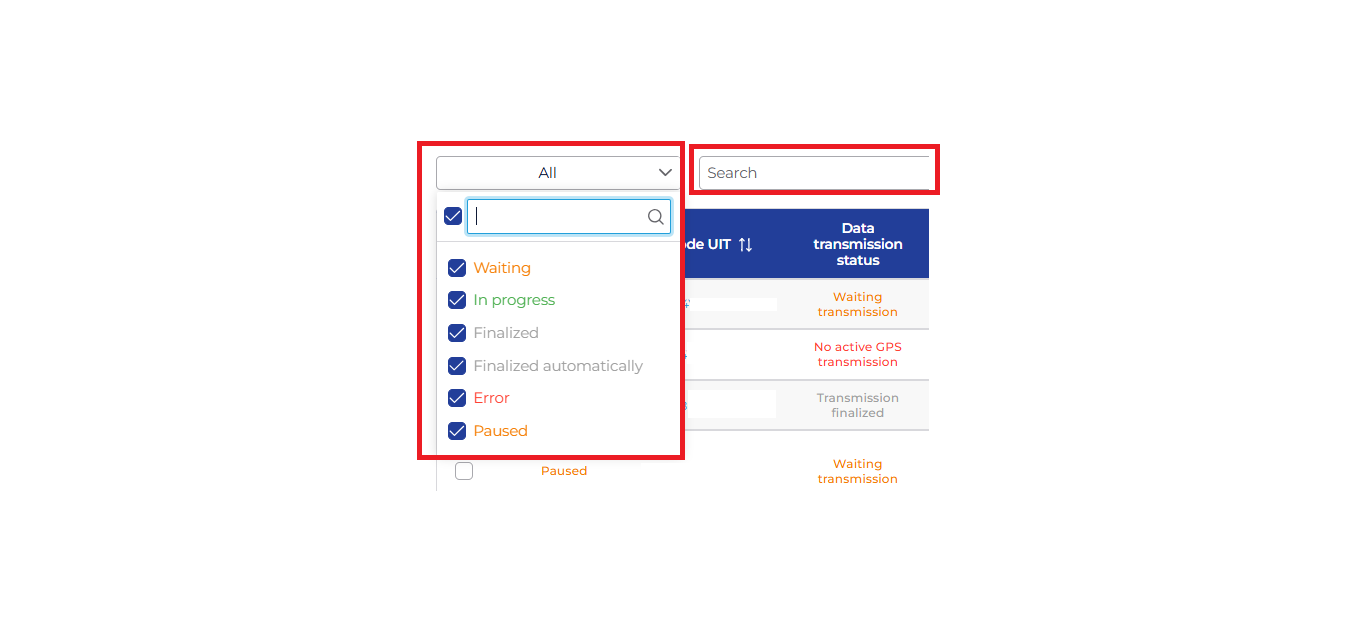
At the top of the list, there is a quicksearch menu where you can search by the fields you want to display
(e.g., UIT code, license plate number, etc).
On the left side, from the drop-down list, you can filter transports based on their status.
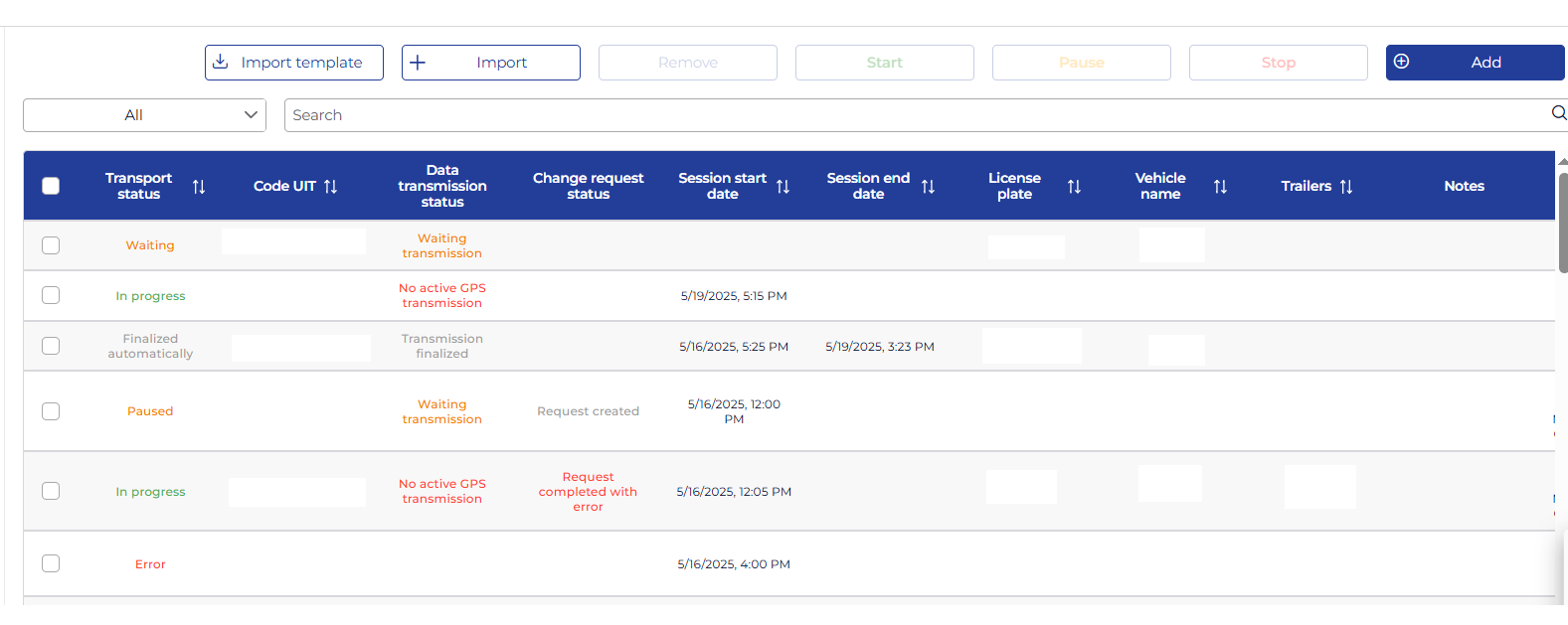
The table contains the following columns:
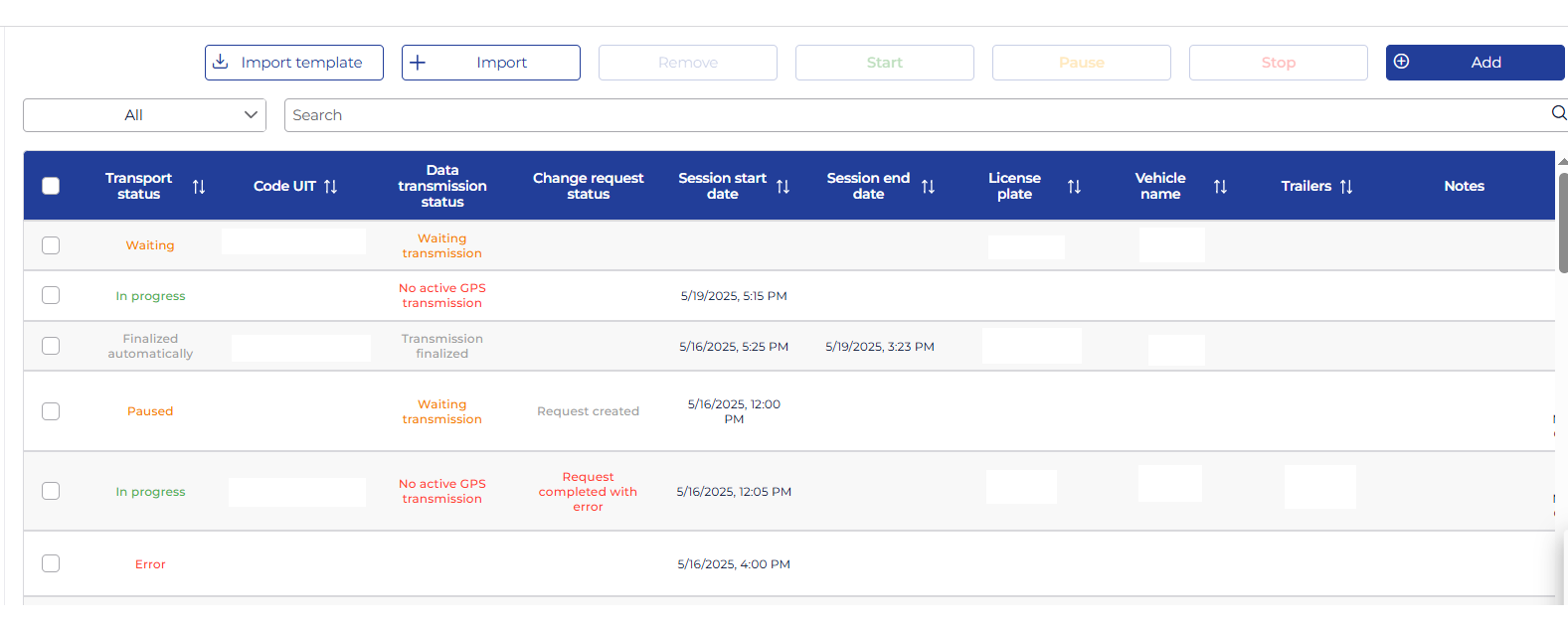
- Transport Status: Status of the transport.
- Code UIT: UIT code generated by ANAF for each transport.
- Data Transmission Status: shows the status of data transmission to ANAF for each transport.
- Change Request Status: shows the status of the request to change transport data (vehicle or trailer license plate number) sent to ANAF. This status is provided by ANAF.
- Session Start Date: date and time when GPS data transmission to the ANAF platform started.
- Session End Date: date and time when GPS data transmission to the ANAF platform ended.
- License Plate: license plate number of the vehicle used to send location data to ANAF.
- Vehicle Name: name of the vehicle used to send location data to ANAF.
- Trailers: license plate numbers of trailers associated with the transports.
- Notes
- Start Location: departure location of the transport as declared in the ANAF platform.
- End Location: arrival location of the transport as declared in the ANAF platform.
- UIT Validity Start Date: start date of the UIT code validity. This date is generated by the ANAF platform.
- UIT Validity End Date: end date of the UIT code validity. This date is generated by the ANAF platform.
- Last Sync Date: date when the last data synchronization with the ANAF platform was performed.
The transport list can be sorted by the following columns: Transport Status, Code UIT, Session Start Date, Session End Date, License Plate, Vehicle Name, Trailers, UIT Validity Start Date, UIT Validity End Date, Last Sync Date.
To edit a transport, click on the UIT code in the list.
Info
Those added automatically from synchronization with the ANAF platform cannot be edited. To make changes to them,
you must log in to the ANAF platform. After saving the changes in the ANAF platform, they will also be visible in the TrackGPS platform.
To add a transport manually, click the Add button in the upper right corner.
Except for transports with the status In progress, all transports in the list can be deleted.
Select the desired transports by checking the checkboxes and click the Delete button in the menu at the top of the page.
You can check who performed the deletion by accessing the Administration menu, Activity History.
Add Transport
Manual Transport Addition
To add a new transport, from the management page click the Add button.
Besides the transports that appear automatically in the e-Transport menu list through authorization with the ANAF platform,
you can also manually add a transport.
Click Add, and a window will open where the following fields are required:
license plate number, VAT number (automatically filled if authorized with ANAF), Code UIT, UIT validity start date,
UIT validity end date.
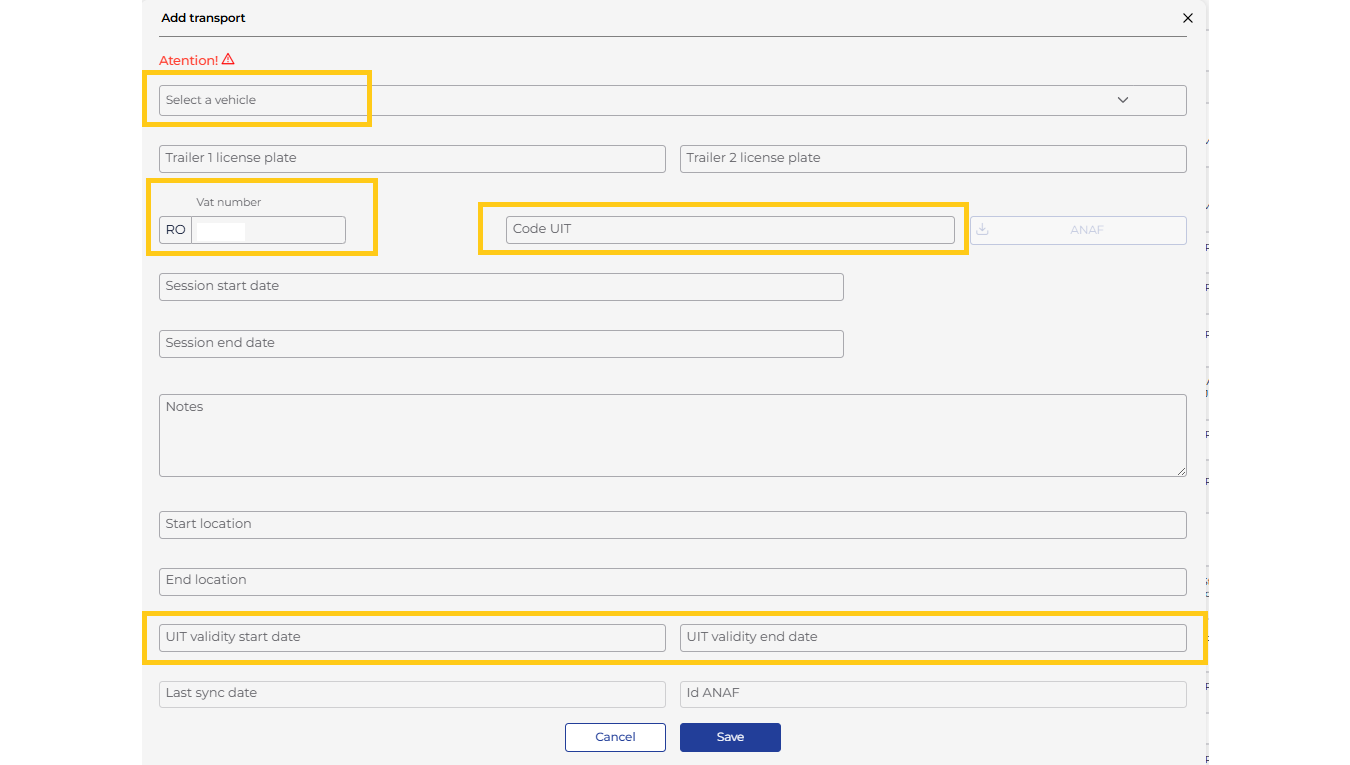
If you have the UIT code and authorization with the ANAF platform has been completed, clicking the ANAF download button will automatically fill in the fields by querying the authority’s platform.
After filling in the fields, click Save and the transport will be saved. Transports will be ordered by session start date.
Another option to add transports is by importing a file. You need to download the import template, fill in the columns with the same information, and then save it.
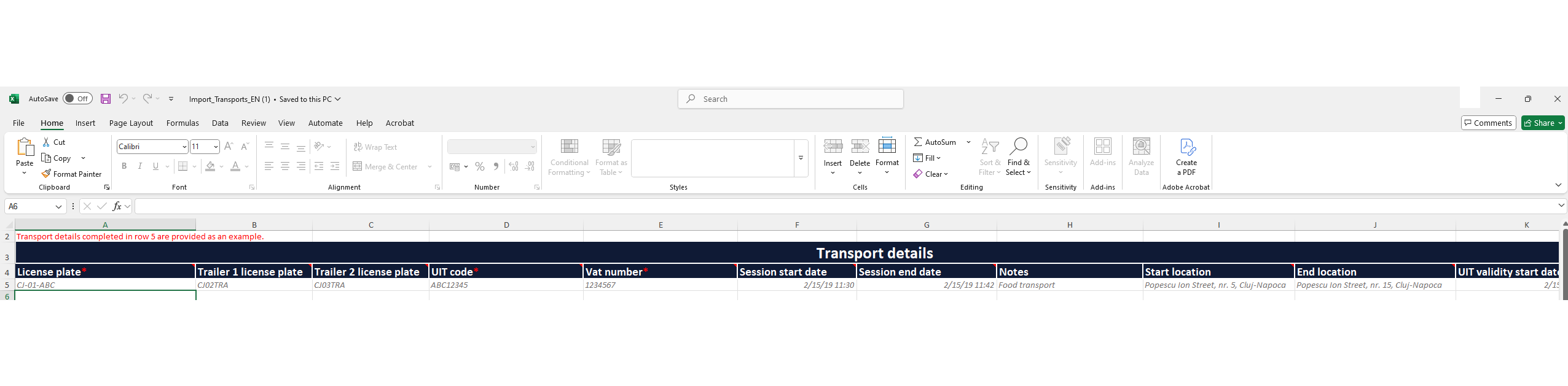
Afterwards, click “Import”, select the previously saved file, and a window with the Import Result will appear where you can check if the processing was successful.
Edit Transport
To edit a transport, click on the UIT code of a transport from the list.
This will open the transport edit form.
If the transport was added manually, all fields can be edited except for the UIT code.
For transports added through synchronization with the ANAF platform, only the session start and end dates can be edited.
Also, a transport with the status “Finalized” can no longer be edited.
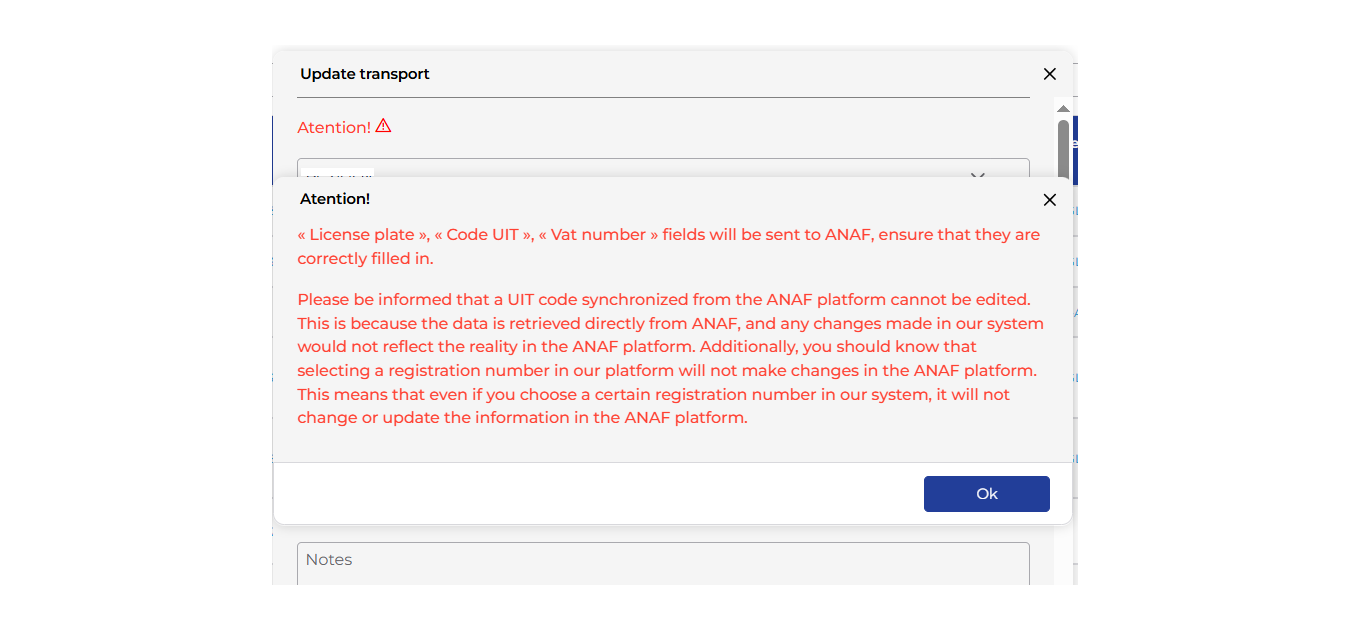
In the transport edit form, a warning message is displayed to inform users that any changes made in the TrackGPS application to information retrieved directly from ANAF about a specific transport will not update the information in the ANAF platform.
Start/Stop/Pause Transport
Executing a Transport
Once all transports have been saved in the e-Transport module, you need to monitor their execution.
Important
Data transmission must not be stopped later than the UIT code validity expiration date.
If you forget to stop the session by pressing the Stop button, this will be done automatically by the TrackGPS platform
when the UIT code validity expires, and the status will change to “Automatically finalized”.
Starting a Transport Session
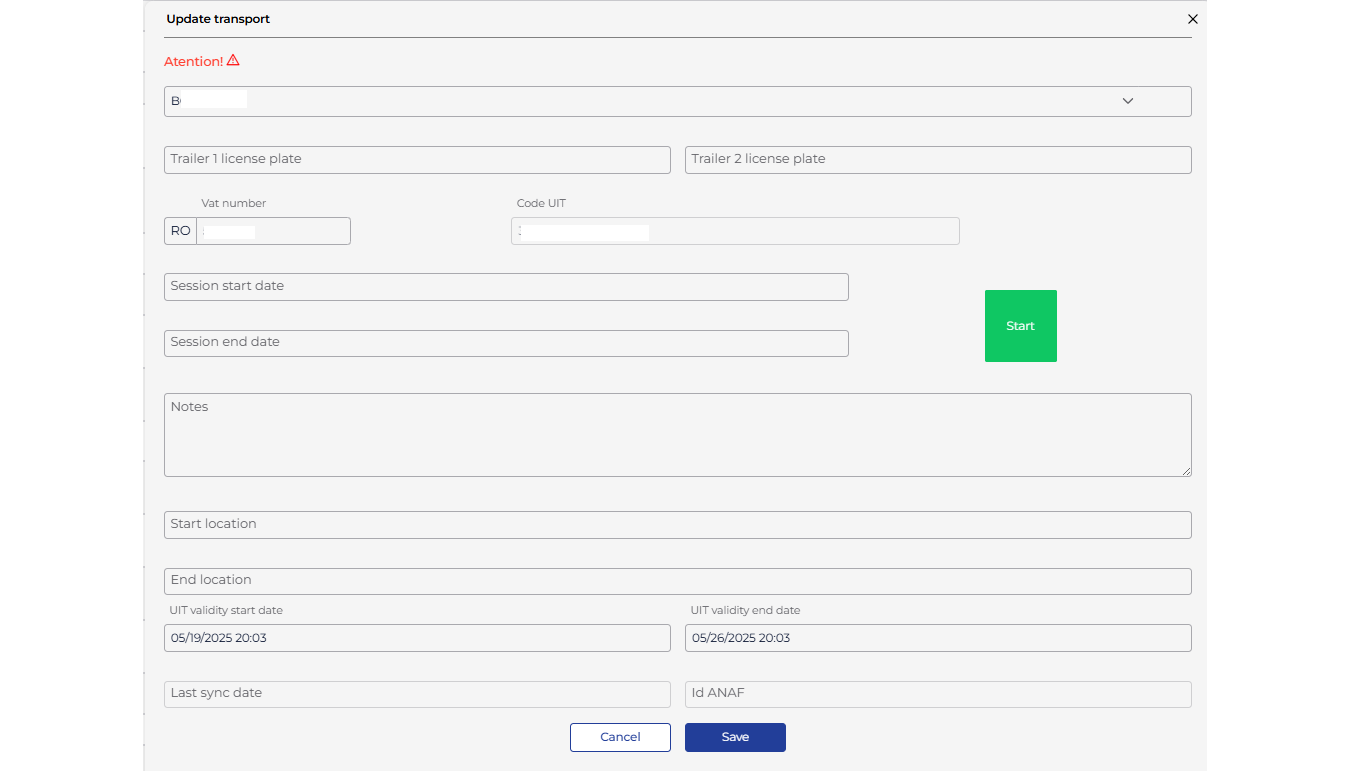
Select the desired transport by clicking on the UIT code and start the session by clicking the Start button.
This step should be performed before the vehicle is leaving the starting location.
Data transmission will begin immediately.
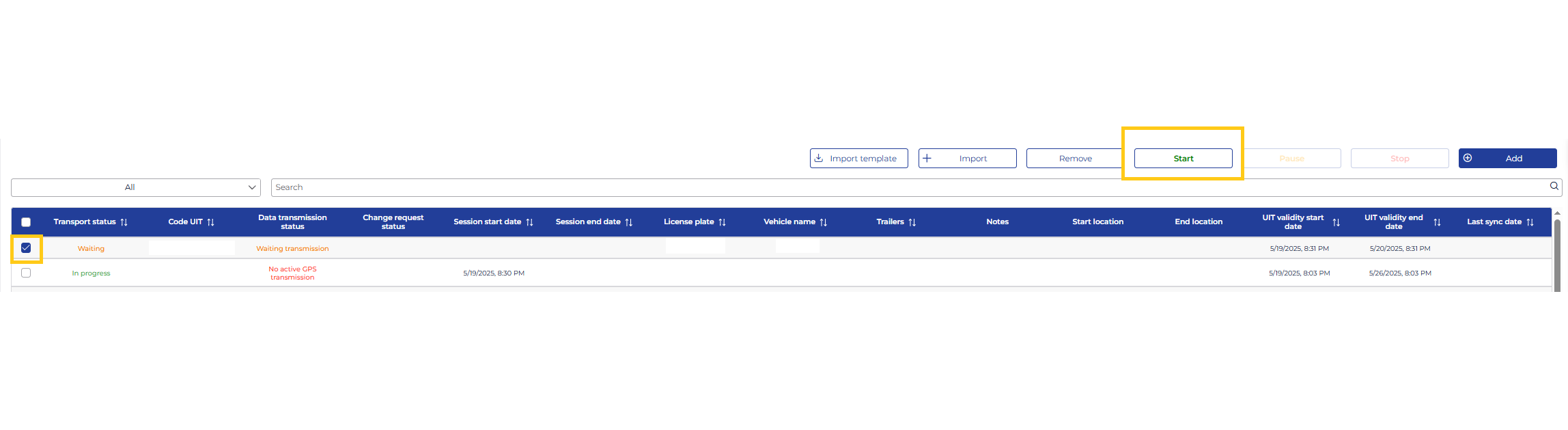
If you want to start multiple transports, you can select them by checking the checkboxes on their left
and pressing the Start button from the top menu.
Pausing a Transport Session
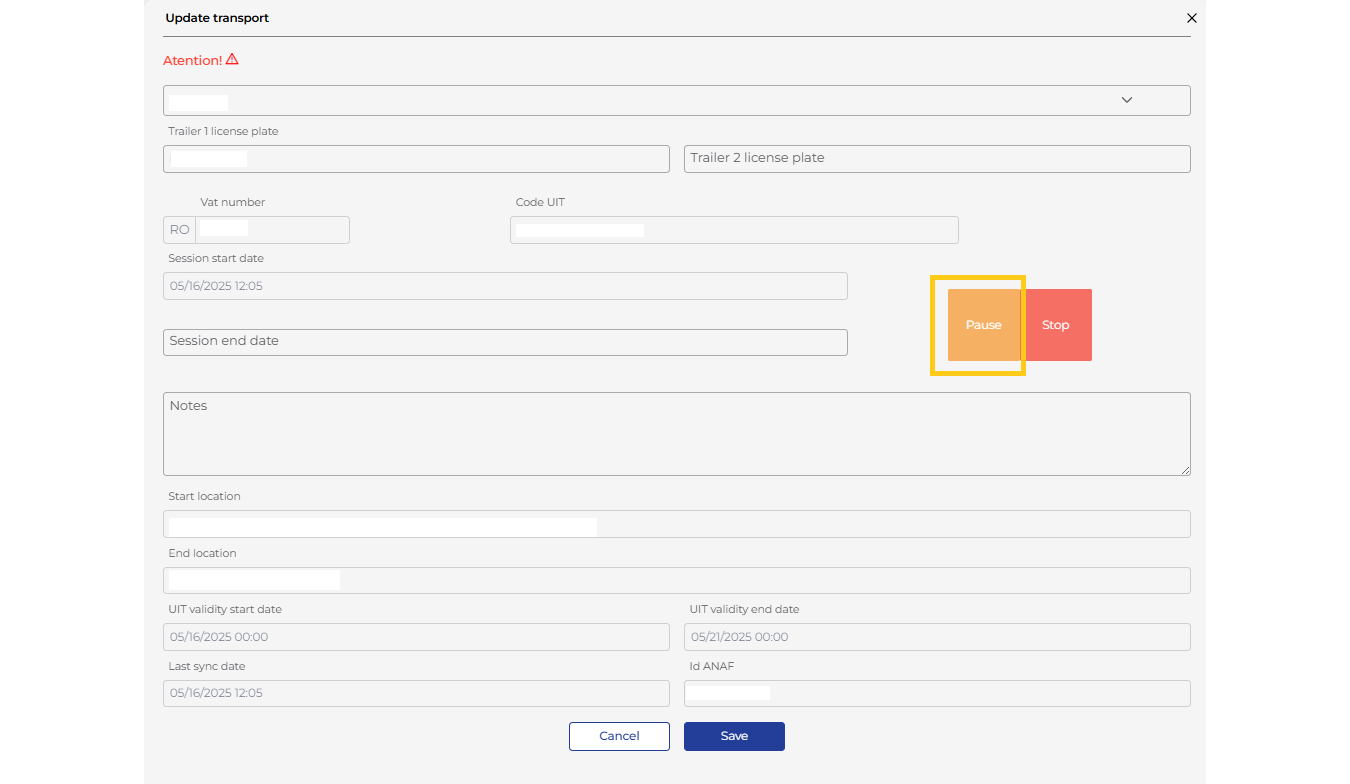
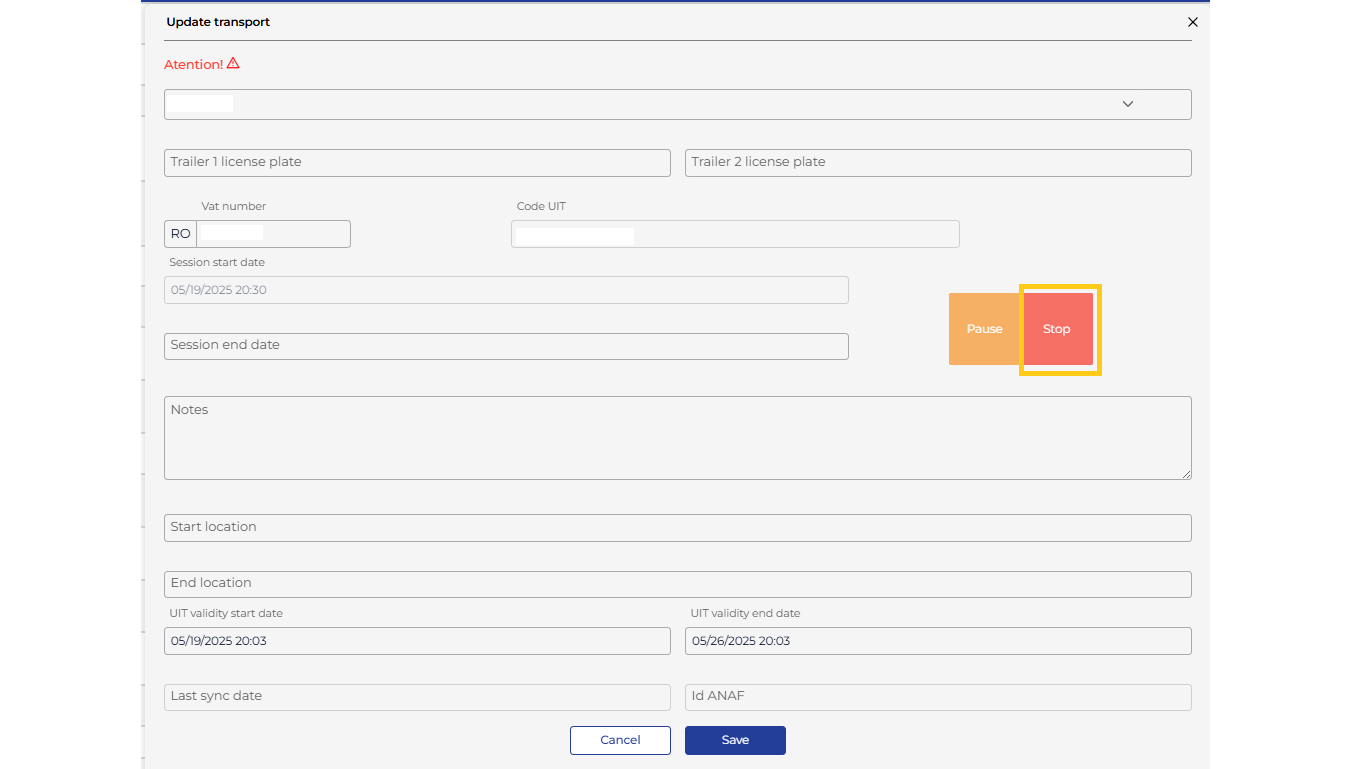
Select the desired transport by clicking on the UIT code and pause the session by clicking the Pause button.
At that moment, the transport status will change to “Paused”.
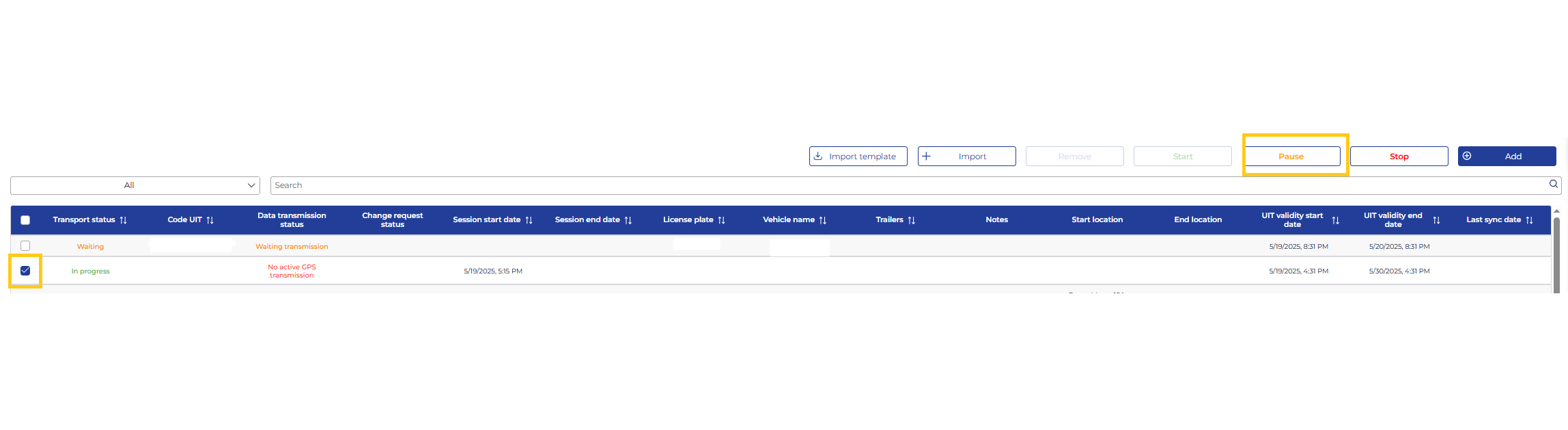
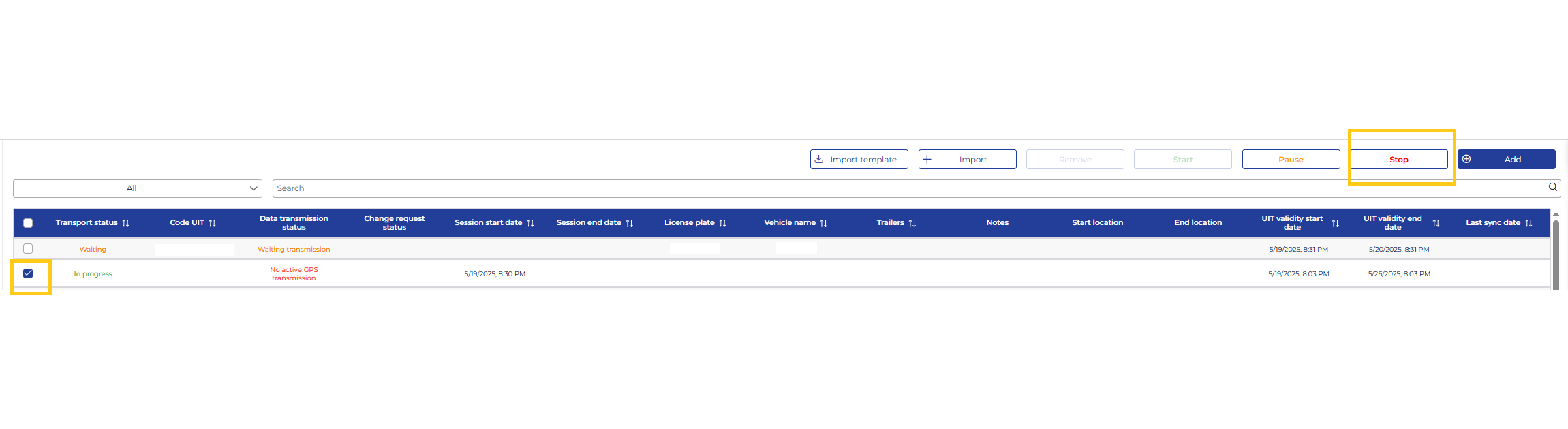
If you want to pause multiple transports, you can select them by checking the checkboxes on their left
and pressing the Pause button from the top menu.
Stopping a Transport Session
Similarly, to stop a transport, click the Stop button. At that moment,
the transport status will change to “Finalized”.
Transport Status
Displays the status of each transport.
The statuses available in the TrackGPS system are listed below, along with their meanings.
| Status |
Description |
| Pending |
This status is assigned to a transport that has not yet started, either because the session start date is not set or it is scheduled for a future date. The vehicle allocated to this transport has been identified. |
| In Progress |
This status is assigned to a transport that has already started, and the TrackGPS application is sending GPS data to ANAF. The transport remains in this status until it is completed. |
| Completed |
This status is shown for transports that have been completed. A transport is completed when the end session date entered by the user is reached, or when the user stops data transmission by clicking the “Stop” button in the transport details form or from the transport list. Once completed, GPS data is no longer sent to ANAF. |
| Automatically Completed |
Assigned to transports that reach the expiration date of the UIT code validity. When this date is reached, GPS data transmission to ANAF is automatically stopped. |
| Error |
Assigned to transports for which the vehicle cannot be identified from the ANAF platform. The license plate number from the ANAF platform either does not exist in TrackGPS or is not entered correctly. Clicking this status displays a warning message regarding the vehicle that could not be identified in the TrackGPS application. |
Data Transmission Status
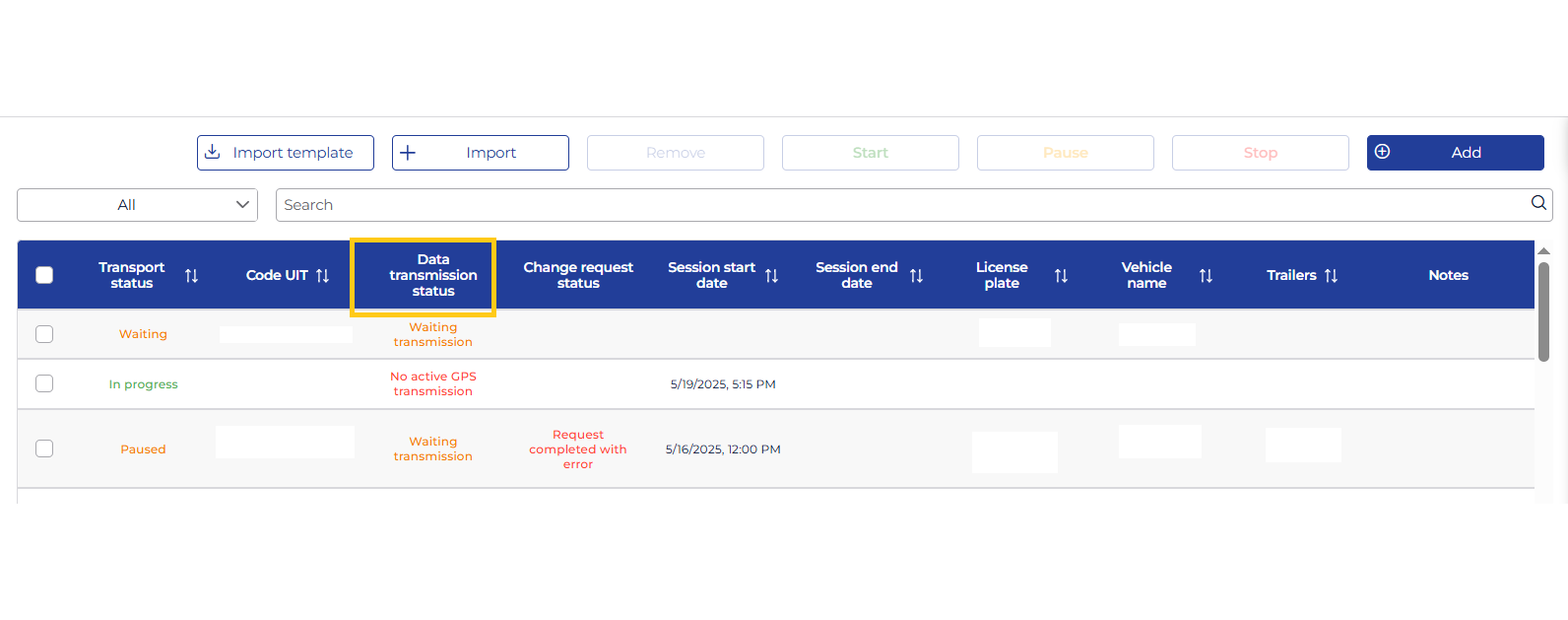
The available statuses in the TrackGPS system are listed below, along with the meaning of each.
| Status |
Description |
| Transmission finalized |
The transport is in one of the following statuses: Finalized/Finalized automatically (transport finished). |
| Waiting transmission |
The transport is in one of the following statuses: Waiting (planned but not started). |
| No active GPS transmission |
Appears for transports in progress but without GPS data transmission. Possible causes:
- The transport has started, but the vehicle is stationary with the engine off.
- A possible error in the TrackGPS system (contact support team). |
| Active transmission |
Data is being successfully transmitted to ANAF. |
| Data transmission error |
Data was not transmitted to ANAF due to:
- Incorrect license plate number entered for manual transports.
- Issues with the ANAF system receiving data. |
| Not on the territory of Romania |
The vehicle has an active data session but is not in Romania. Transmission to ANAF is not required. |
| e-Transport configuration error |
The vehicle is not correctly configured in TrackGPS. Contact the support team. |
| Data older than 6 Hours * |
The received data is older than 6 hours and cannot be transmitted to ANAF. Possible causes:
- The vehicle lost GSM signal for more than 6 hours.
- GSM operator network issues. |
| No GPS signal * |
The vehicle is in an area with weak or no GPS signal. Transmission to ANAF cannot be performed. |
🔔 Recommendation
* To avoid transmission issues, set up a notification of type “Data Transmission Interruption to ANAF” at a 30-minute interval. If errors occur, you can use the ANAF application to manually transmit location data.
Change Request Status
When changing the vehicle registration number and/or trailer numbers for a transport imported from the ANAF platform, a data change request will be sent to ANAF. The status of this request will be displayed in the “Change Request Status” column.
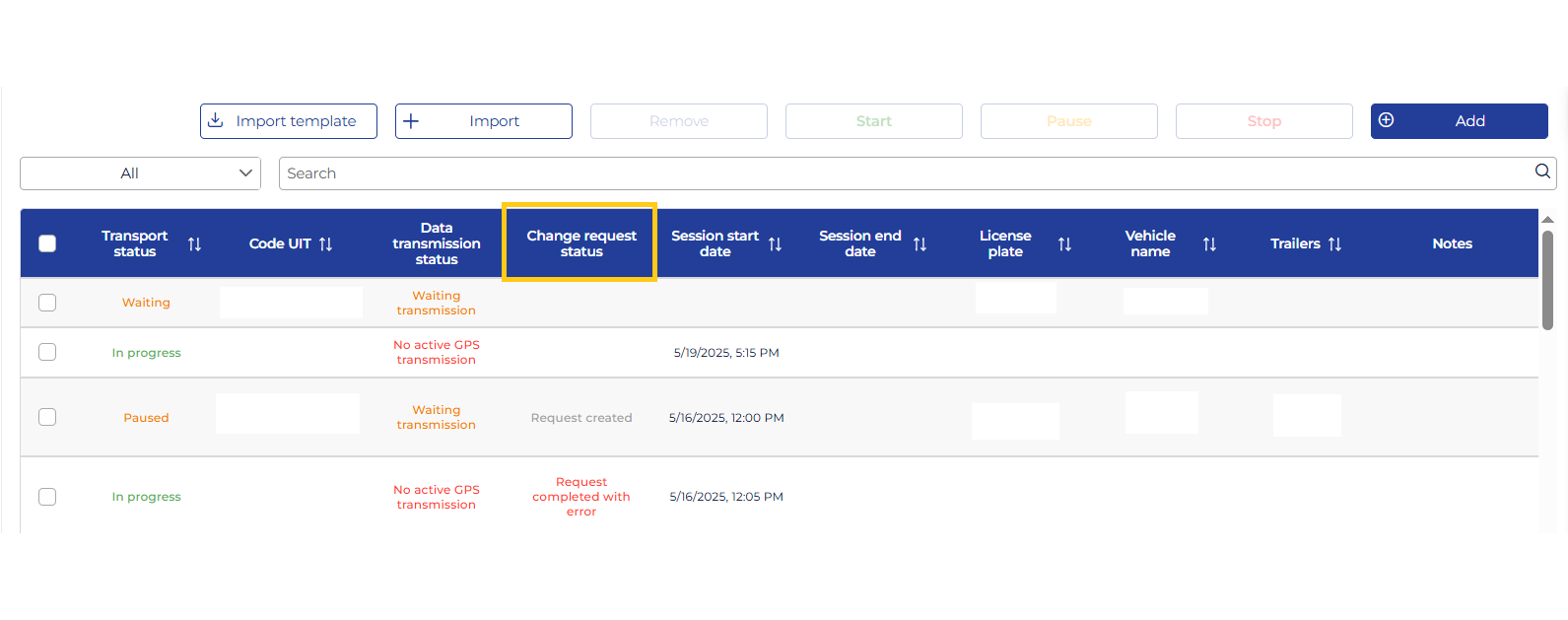
The statuses of the data change request are listed below, along with their meanings.
| Status |
Description |
| Request Created |
The transport data change request has been created and saved in the TrackGPS platform. |
| Request Successfully Sent |
The transport data change request has been sent to the ANAF platform. |
| Error Sending Request |
The transport data change request could not be received by the ANAF platform. |
| Request Successfully Completed |
The transport data change request has been successfully processed by the ANAF platform. |
| Request Completed with Error |
The transport data change request was processed with an error by the ANAF platform. |